
How to import bank statements in Analytical Ledger
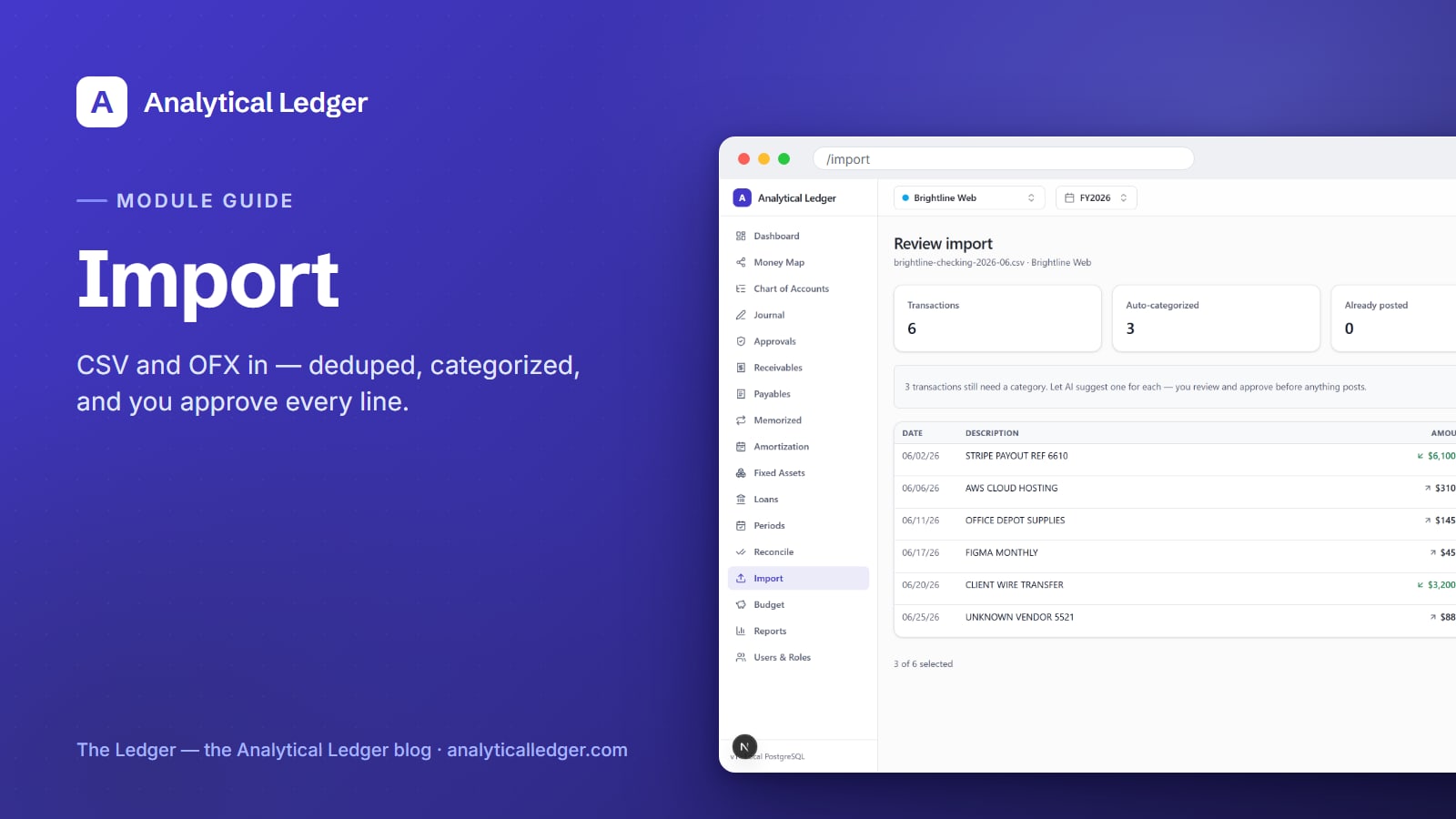
A year of bank statements is not a year of work — not when the import does the parsing, the deduping, and most of the categorizing before you touch a single row.
- The Import module is an ETL wizard for bank and card statements: you upload a CSV or OFX file, it parses, normalizes, and deduplicates every row, a rules engine proposes an account for each one, you approve, and the selected rows post as balanced journal entries. That is how you turn the pile of statements into a caught-up general ledger.
- Deduplication runs on a file hash and per row, so re-importing the same statement never double-counts.
- Saved import sources remember one bank or card's format, so the next month's file drops straight in.
- The principle throughout: AI proposes, a human approves, and database triggers validate — the machine does the tedium, you keep the judgment.
Why does the pile of statements never shrink?
Because entering transactions by hand is slow, and slow work stops the moment the business gets busy. A single month of a checking account can be a hundred lines. Type them into a spreadsheet and you get typos, missed signs, and no guarantee the books balance. So the statements pile up, and the pile is exactly why you can't tell if you made money last month.
Manual entry also has no memory: every month you re-decide that "AMEX EPAYMENT" is a card payment and "SQ *COFFEE" is a meal. The Import module ends both problems — it handles the volume and remembers your decisions, so next month is faster than this one.
How do you import a bank statement, step by step?
Open the Import module at /import. You'll see your saved import sources — one per bank or card you've set up — and a list of recent import batches with their status. Importing a statement is five ordered steps, and the module walks you through each one.
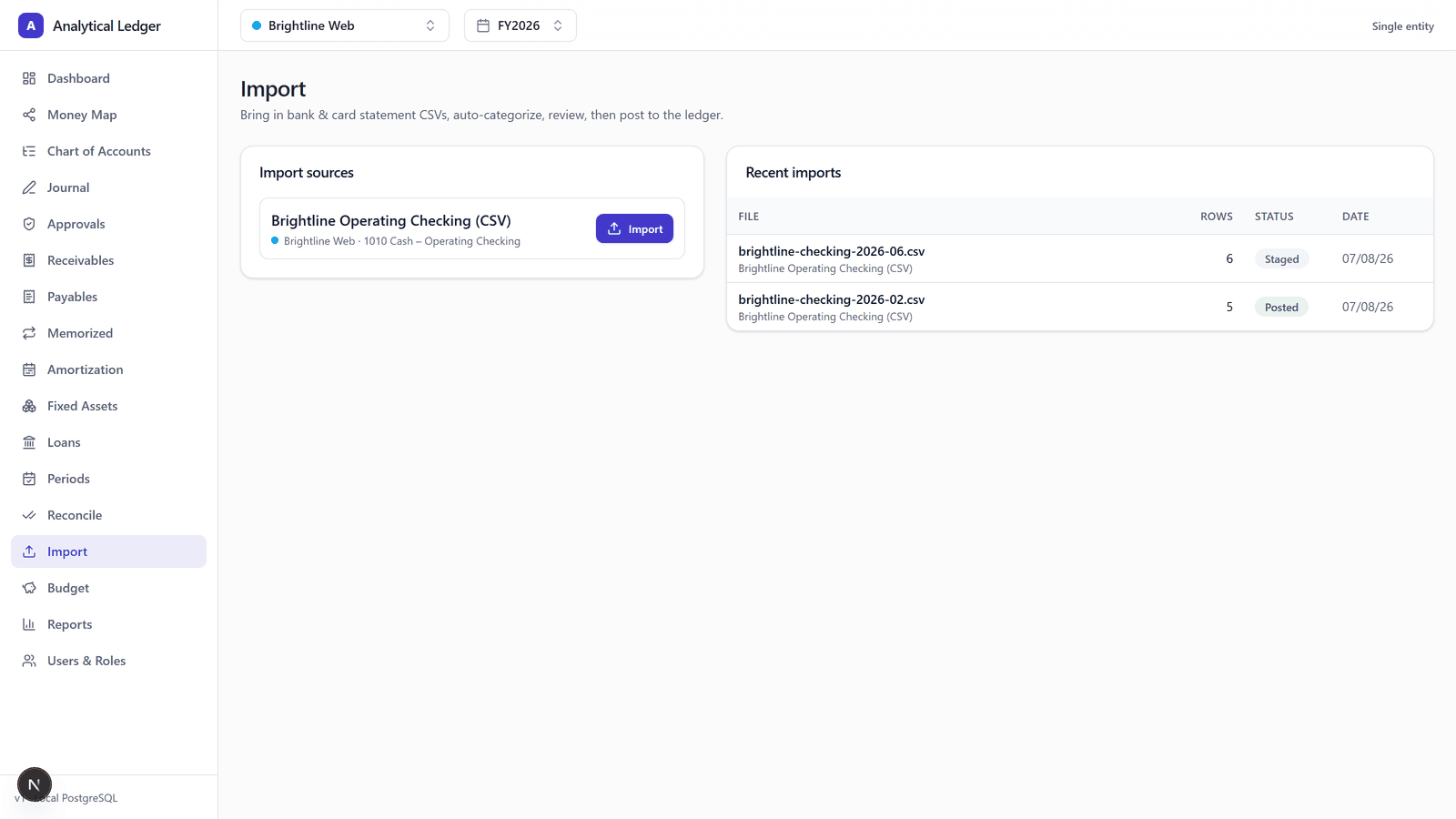
1. Pick or create an import source
An import source is a saved profile for one account — say, your business checking CSV. It remembers which columns hold the date, description, and amount, so you map the format once and reuse it every month. First time through, create the source and map the columns. After that, pick it from the list and skip straight to the file.

2. Upload the CSV or OFX file
Export the statement from your bank as CSV or OFX and drop it onto the upload area. The module reads it against the source profile, parses each line into a transaction, and normalizes the values — dates into one format, amounts into exact decimals rather than floating-point, so the math is correct to the cent from the first step.
3. Let deduplication do its check
Before anything posts, the module deduplicates. It hashes the whole file and checks each row against what you've already imported. Rows that already exist get flagged rather than added again — so nothing double-counts, even when you re-run a file you weren't sure about.
4. Review the proposed accounts
Each imported batch opens on a review screen: one line per transaction, showing the proposed account, the amount, and a status chip. A rules engine has already categorized what it recognizes; optional AI-assisted categorization proposes an account for the rows it doesn't. Rows read posted, already imported, or needs account. You assign an account to anything unresolved and correct anything the engine got wrong.
5. Post the selected rows
Select the rows you've reviewed and post them. Each one becomes a balanced journal entry with its source marked import, so you can always tell an imported entry from a manual one later. Balance is enforced twice — in the app and again by database triggers — so a batch that wouldn't balance can't post. From here the ledger agrees with the statement, and you're ready to reconcile the account against the statement.
What happens if I import the same file twice?
Nothing bad — that's the point. The Import module deduplicates on two levels: a hash of the entire file, and a check on each individual row. Re-upload a statement you already imported and the module recognizes it, marks the rows already imported, and refuses to add them a second time. Your balances don't move.
Overlapping date ranges are the usual trap — you export January 1 through 31, then next month export December 15 through January 31 and catch a few of the same transactions. Per-row deduplication catches the overlap even though the two files aren't identical, so you never have to remember exactly where the last import stopped.
How do the rules and AI categorization work together?
The rules engine runs first: deterministic rules you (or the defaults) set map a recognized description to an account every time — "INTUIT PAYROLL" always lands in payroll, no guessing. For rows no rule covers, optional AI-assisted categorization proposes an account based on the description. Both are proposals. Nothing posts until you approve it, and once posted, the entry is validated by the same database triggers that guard every entry in the ledger.
That order is deliberate: rules give consistency for the transactions you see every month, AI covers the long tail, and you keep the final say. Turn the AI's good guesses into rules and each month more of the batch is already categorized when the review screen opens. The categories come from your chart of accounts — set that up first and the proposals land on real accounts from the start.
What people get wrong about importing statements
The common mistake is treating import like data entry you have to babysit — reading every row as if the machine can't be trusted. It's built the other way around: the rules engine and AI handle the volume, and your job is the exceptions and the approval, not the typing. Skimming the needs account rows and spot-checking the rest is the whole job most months.
The second mistake is fear of importing twice — so people key a statement in by hand instead, reintroducing the exact errors import prevents. When in doubt, import the file; deduplication sorts out what's already there. And every posted entry is immutable, so a genuine mistake is fixed with a reversing journal entry, never by editing history.
We run our own group of companies — and our personal finances — on Analytical Ledger, daily, in production. Every bank and card statement across those entities comes in through this module — it is the first thing we reach for when a business gets behind, because it is the fastest way from the pile of statements back to books you can trust.
Frequently Asked Questions
What file formats can I import?
Analytical Ledger imports bank and card statements as CSV or OFX. Export whichever your bank offers, then map the file to an import source once — the module remembers the column layout for next month. It parses each row, normalizes dates and amounts to exact decimals, and prepares them for review before anything posts to the ledger.
Will importing the same statement twice double my transactions?
No. The Import module deduplicates on a file hash and again on each individual row, so re-importing a statement you've already loaded never double-counts. Overlapping date ranges are caught at the row level too. Duplicate rows are flagged already imported and skipped, and your account balances stay exactly where they were.
Do I have to categorize every transaction myself?
No. A rules engine auto-categorizes the transactions it recognizes, and optional AI-assisted categorization proposes accounts for the rest. You review the proposals, assign an account to anything marked needs account, and post. The principle is "AI proposes, human approves, triggers validate" — the machine does the tedious sorting, you keep the final judgment on every entry.
What does the import actually create in my books?
Each row you approve posts as a balanced double-entry journal entry with its source marked import, so imported entries are distinguishable from manual ones. Balance is enforced in the app and again by database triggers, so a batch can't post unless it balances. Once posted, entries are immutable — you correct mistakes with a reversing entry, the way real accounting works.
Can I import statements for more than one entity?
Yes. Every entity keeps its own set of books, and each gets its own import sources for its bank and card accounts. Import into whichever entity you're viewing, and the entries land in that entity's ledger. Personal finances are a first-class entity too, so your personal accounts import exactly the same way as any company's.
Start with the account that's furthest behind
Pick the bank or card that's most behind, set up its import source, and pull in a few months. Watch the pile turn into posted entries you can trust — then move to the next account. It's the fastest path from the pile of statements to current books, and part of the free, seventeen-module app you can see in context. New guides are linked from the module tour as they publish; if you get stuck, tell us where.
About Analytical Solutions
Analytical Solutions builds Analytical Ledger — free, correct-to-the-cent, double-entry accounting that keeps every entity in one place and your data yours to keep. We run our own group of companies on it, and every statement comes in through the Import module described here. More about us.