How to use the Chart of Accounts module
Most owners think building a chart of accounts is the hard part. It isn't — because in Analytical Ledger you don't build one.
- The chart of accounts is the master list of every category your money flows through — assets, liabilities, equity, income, and expenses. In Analytical Ledger it ships pre-built: a 118-account best-practice chart, mapped to IRS Schedule C and Form 1120, ready per entity the moment you create one. Most owners never build a chart from scratch.
- Open the module at
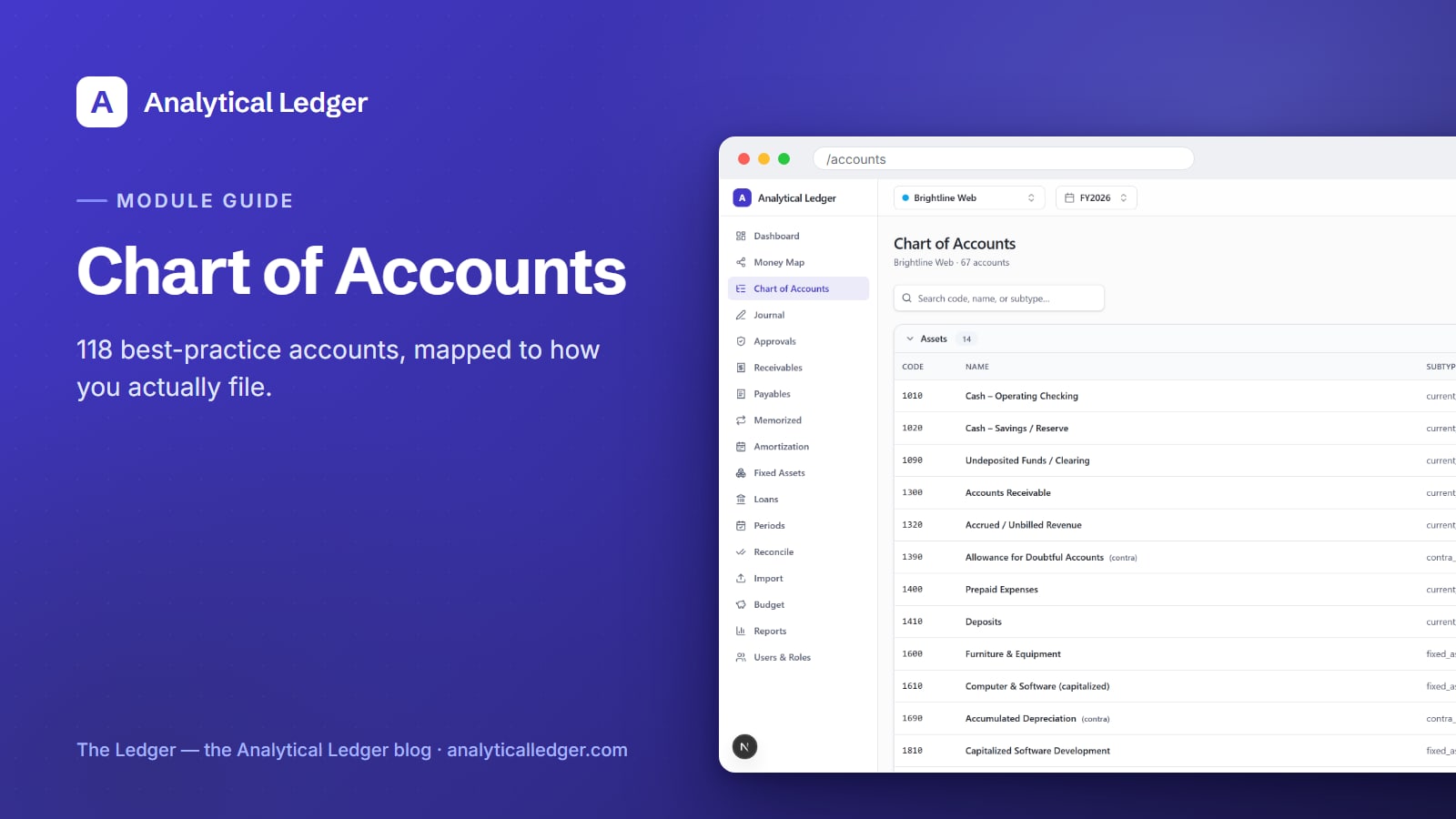
/accountsand you get a searchable table — account number, name, type, normal balance, and whether each account is in use. - Every account drills into its own register: general ledger activity for any date range, with a running natural balance.
- New to the app? Start with the tour of all 17 modules for the map, then come back here for the account that anchors all of them.
Why does a messy chart of accounts cost you at tax time?
A disorganized chart turns tax season into archaeology. When your categories don't line up with the lines you actually file — Schedule C for a sole proprietor, Form 1120 for a corporation — you spend the deadline reconstructing which expense belongs where, guessing at splits, and hoping the totals hold. That guesswork is where errors and missed deductions live.
The usual failure is the opposite of too little structure: it's too much of the wrong structure. Owners in spreadsheets invent categories on the fly, end up with forty overlapping "misc" buckets, and can never produce a clean profit-and-loss statement. A chart built to match how you file removes that whole scramble. The numbers already sit in the right rows.
What the Chart of Accounts module actually is
The Chart of Accounts module is the per-entity master list of every account your books post to, managed at /accounts. Each entity — holding, operating, consulting, or personal — gets its own chart, so a set of books always knows exactly which categories it can use. It is the backbone every other module writes against.
The default chart holds 118 accounts, organized the way real accounting works: assets, liabilities, equity, income, and expenses, each with a natural (normal) balance. Because it's mapped to IRS Schedule C and Form 1120 lines, your day-to-day categorizing quietly builds a return-ready structure. You aren't translating your books into tax language in April — they already speak it.
This matters most across multiple entities. Every entity carries the same well-formed chart, which is what makes consolidated reporting clean when you run several entities in one place. Same accounts, same shape, every set of books.
How to set up your chart of accounts
You set it up by not setting it up. Create an entity and the 118-account chart is already there — the design goal is that most owners never touch account creation. The real work is learning to read the table and drill into a register, so here is the short path from opening the module to trusting what you see.
1. Open the module and read the table
Go to /accounts. The chart loads as a table with five columns you'll use constantly: account number, account name, type (asset, liability, equity, income, or expense), normal balance (debit or credit), and status. Scan the type column to see the whole structure at a glance — the numbering groups related accounts so the order already tells a story.
2. Search to find any account fast
Use the search box to filter the table instead of scrolling 118 rows. Type part of an account name or number — "advertising," "6100," "loan" — and the list narrows as you go. This is how you confirm an account exists before you post to it, and how you check the exact name a category uses so your entries stay consistent.
3. Read the status column to see what's in use
Every account shows a status: in use or unused. In use means the account has posted activity; unused means it's part of the default chart but nothing has hit it yet. This tells you at a glance which accounts your business actually touches, so you can ignore the rest without deleting anything. An unused account costs nothing — it simply waits.
4. Drill into an account's register
Click any account to open its register — the general ledger activity for that account over a date range, with a running natural balance down the column. This is where the chart stops being a list and becomes an audit trail. Every posted journal entry that touched the account appears here, sourced and dated, so you can trace any balance back to the entries behind it.
5. Add an account only when you truly need one
If your business has a category the default chart doesn't cover, add an account — give it a number that fits its type's range, a clear name, and the right normal balance. But add sparingly. A lean chart produces cleaner reports than a sprawling one, and the 118 defaults already cover what most small businesses and self-employed operators file.
What people get wrong about the chart of accounts
The biggest mistake is treating the chart as a to-do — something you must design before you can start. You don't. A best-practice chart is a solved problem, and reinventing it per business just produces categories that don't map to any tax form. Start from the default; adjust only where your business genuinely differs.
The second mistake is hoarding accounts. More categories feel more precise, but a chart with a separate line for every vendor becomes unreadable, and the reports built from it turn to noise. Precision comes from posting entries correctly against a tight chart, not from splitting the chart into a hundred near-duplicates. If two accounts would always be read together, they should probably be one.
We run our own group of companies — and our personal finances — on Analytical Ledger, daily, in production. Every one of those entities runs on this same default chart, adjusted only where a real business difference demanded it. The 118 accounts aren't a theoretical starter set; they're the chart we file our own returns from.
Frequently Asked Questions
Do I have to build a chart of accounts from scratch?
No. Every entity you create in Analytical Ledger ships with a 118-account best-practice chart already in place. The design goal is that most owners never build one — you start categorizing on day one. If your business needs a category the default lacks, you can add an account, but that's the exception, not the setup step.
What is the chart of accounts mapped to for taxes?
The 118-account default chart is mapped to IRS Schedule C and Form 1120 lines. That means your everyday categorizing quietly builds a return-ready structure: the totals already sit in the rows you file from. Tax season becomes a rollup of numbers that are already organized, instead of an excavation to reconstruct where each expense belongs.
Can I add my own accounts?
Yes. If your business has a category the default chart doesn't cover, add an account with a number that fits its type range, a clear name, and the correct normal balance. Add sparingly, though — a lean chart produces cleaner reports than a sprawling one, and the 118 defaults already cover what most owners actually file.
Does each entity get its own chart of accounts?
Yes. The chart of accounts is per entity, so every set of books — holding, operating, consulting, or personal — manages its own accounts. Because each entity carries the same well-formed default chart, consolidated reporting stays clean across a group: same accounts, same structure, every set of books lined up the same way.
Start with the account that anchors everything
Your chart of accounts is where every report, reconciliation, and tax rollup begins — so it's the right place to start knowing the condition of your business. Open the Chart of Accounts module in the full app, search the 118 defaults, and drill into a register to see how the ledger already ties to how you file. Pair it with double-entry basics if the debit-and-credit side is new, and the rest of the modules will read like second nature.
About Analytical Solutions. We build Analytical Ledger — free, correct-to-the-cent, multi-entity double-entry accounting for the owner doing their own books. The 118-account chart mapped to Schedule C and Form 1120 is the same one we file our own companies from. Learn more about us.