
Posting a journal entry that always balances
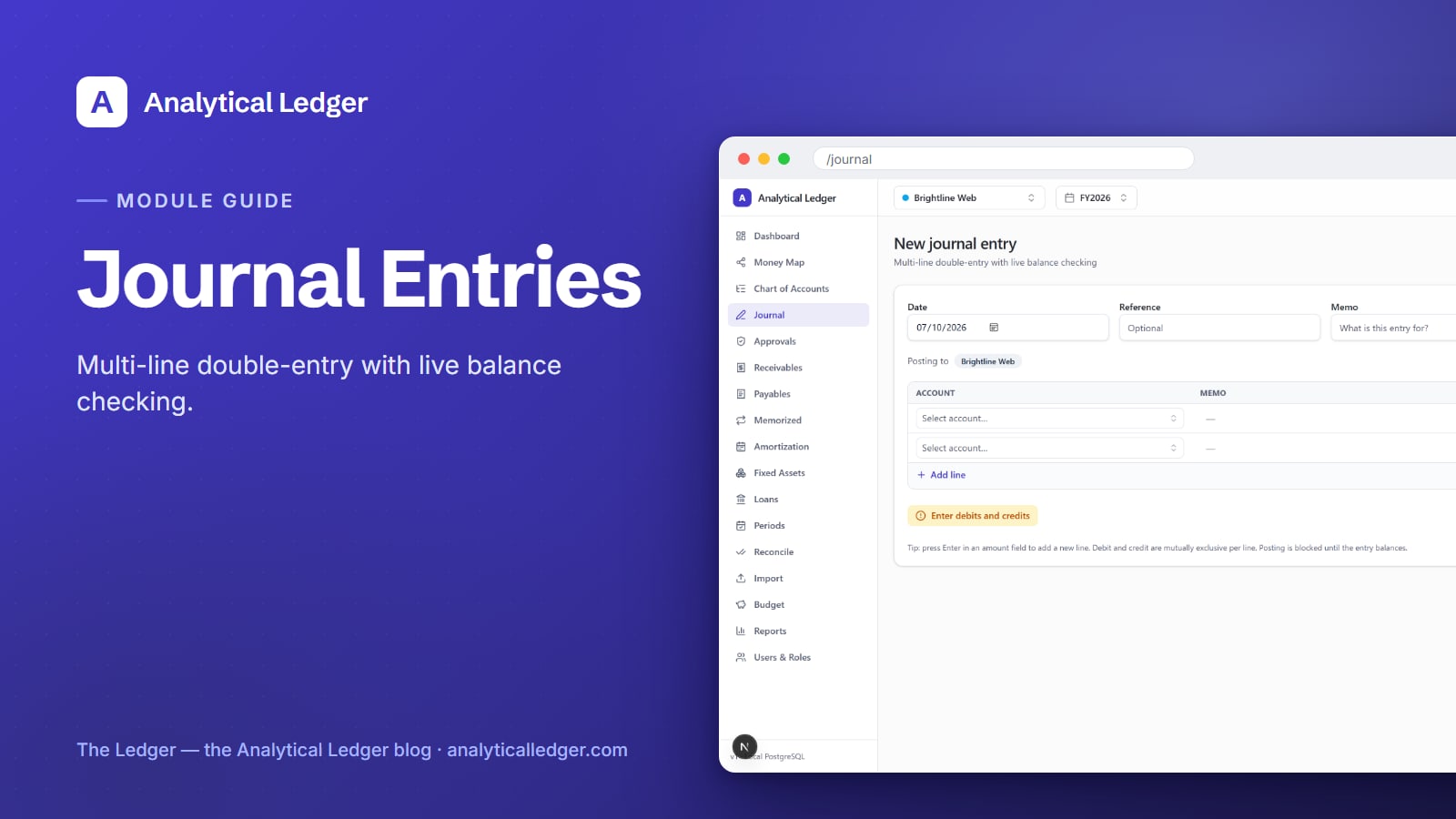
A journal entry that doesn't balance should never be savable — and in Analytical Ledger, it isn't.
- To post a journal entry, open the new-entry editor at
/journal/new, set the date and a memo, add account lines with matching debits and credits, then click Post entry. Posting stays blocked until the entry balances to the cent, so anything that makes it into the ledger is already correct. Save a draft if you're not ready. - Every entry is enforced twice — once in the app, once by database triggers — so a lopsided entry can't sneak through either path.
- Posted entries are immutable: you correct a mistake by posting a reversing entry, the way real accounting works.
- New to the app? Start with the tour of all 17 modules to see where the journal sits in the loop.
Why does an unbalanced entry cost more than it looks?
An unbalanced entry is a lie your reports will repeat. If debits and credits don't match, your trial balance won't tie out, your P&L is off by the difference, and you won't know which report to trust. Most spreadsheets let this happen silently — you find it months later, at tax time, digging.
That's the trap of doing your own books in a tool that doesn't enforce the math. A fat-fingered amount, a line typed in the wrong column, a total that's off by a penny — none of it stops you in Excel. It just quietly poisons the numbers until you're reconstructing a year from scratch. The chart of accounts gives entries somewhere correct to land; the journal is what makes sure they land balanced.
How do you post a journal entry?
You post a journal entry in four moves: open the editor, set the header, add balanced debit and credit lines, then post. Analytical Ledger checks the balance live as you type and refuses to post until debits equal credits exactly. Nothing about the process asks you to be an accountant — it asks you to name what happened and where the money moved.
Open the new-entry editor
From the Journal module, click New entry to open /journal/new. The editor opens against whichever entity you're currently viewing — a Posting to badge names it, so you always know which set of books you're writing to. Switch your entity view before you start if you meant to post somewhere else; personal finances are a first-class entity here, same as any company.
Set the date, reference, and memo
Fill the header first. Date stamps the entry into a monthly period. Reference is optional — a check number, an invoice ID, anything you want to find it by later. Memo answers the editor's own prompt, "What is this entry for?" — write it for the version of you who reads this in eight months.
Add your debit and credit lines
Each line has an Account (type to autocomplete against your chart), an optional per-line memo, and two amount columns: Debit and Credit. A line is one or the other, never both — entering a debit clears the credit on that line, and vice versa. Press Enter in an amount field to add the next line, or click Add line. A Enter debits and credits chip stays visible until real amounts exist, so an empty entry can't be mistaken for a finished one.
Balance and post
Watch the live totals at the bottom. When debits equal credits, the entry balances and Post entry unlocks. Not sure yet? Click Save draft and come back. Fighting a stubborn penny? Auto-balance drops the difference onto a line for you to assign. Posting is blocked until it balances — this is the guardrail, not a nag. When you post, the entry moves from Draft to Posted and hits the ledger.
What does the journal list show you?
The journal list is your run of every entry, newest first, in one scannable table. Each row shows the date, the memo, a source chip, the amount, and a status chip — so you can see at a glance what's still a draft, what's posted, and where each entry came from without opening anything.
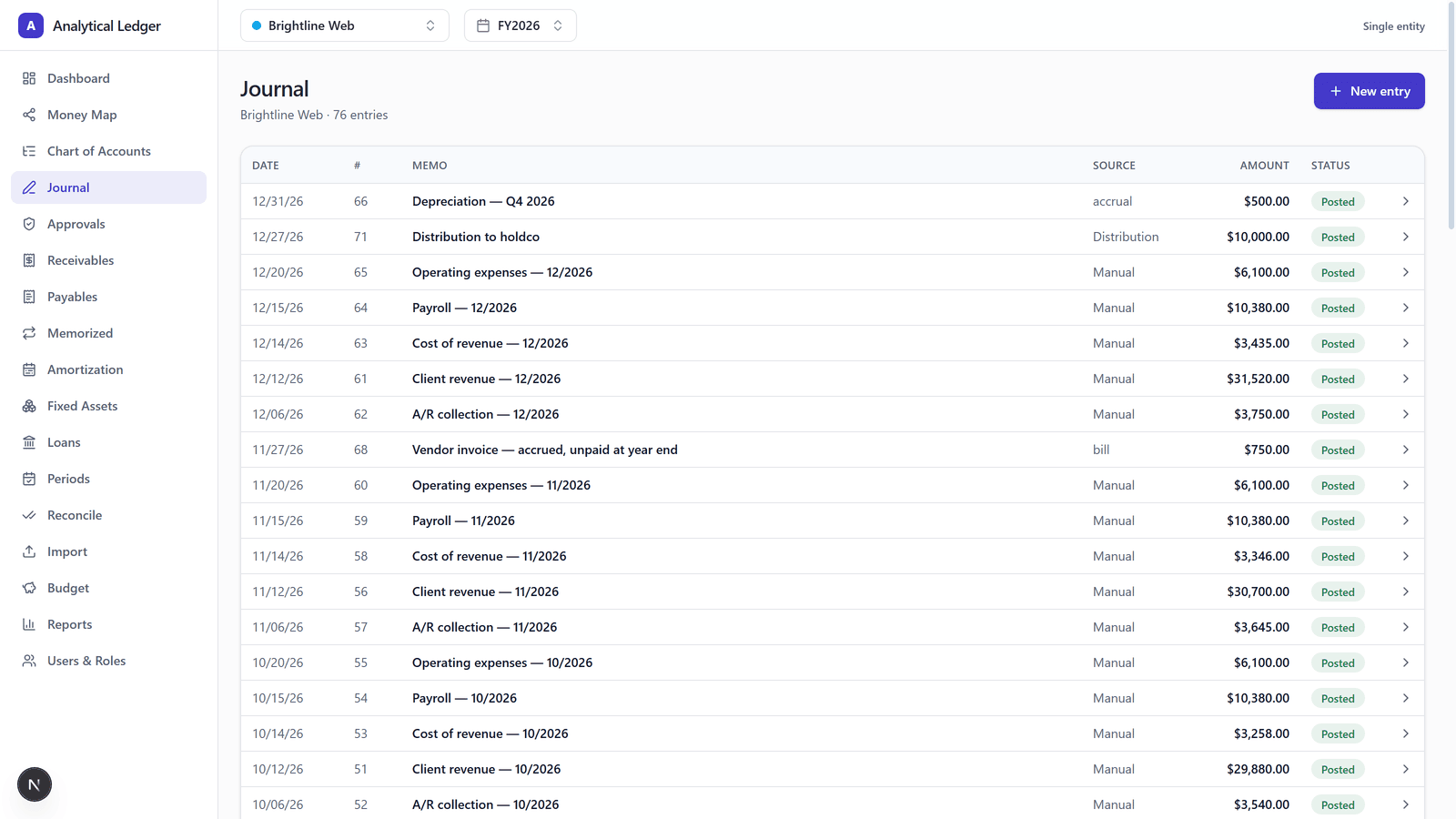
The source chip is the useful part. Manual is an entry you typed. Import came from a bank or card statement. Distribution is profit moved between your entities as two matched, balanced entries, tagged intercompany so consolidated reports eliminate it. System is an entry the app generated for you — a depreciation run, an amortization step. One glance tells you whether a number was hand-entered or machine-made.
What happens after you post an entry?
Once posted, an entry is immutable — it can't be edited or deleted. The detail page shows the balanced debit and credit lines with their totals, and instead of an edit button it offers void and reverse actions. To fix a posted entry, you reverse it: the app writes a mirror entry that cancels the original, leaving both on the record.

This is how real accounting behaves, and it's deliberate. An audit trail you can silently rewrite isn't an audit trail. If the entry's month is already closed, a period-closed badge tells you the period gate is blocking the post until you reopen it or date the correction into an open period. We run our own group of companies — and our personal finances — on Analytical Ledger, daily, in production, and this reverse-don't-delete discipline is exactly why we trust the history it keeps.
What people get wrong about journal entries
The common mistake is treating the journal like a spreadsheet you can go back and fix. In Analytical Ledger you don't erase — you reverse. That feels like extra work until the first time you need to prove what the books said on a given date. The immutable trail is the feature, not the friction.
The second mistake is skipping the memo. An entry with a clean debit and credit but a blank memo is a puzzle you're leaving for future-you. Thirty seconds of "what is this for" now saves an hour of archaeology later. And the third: assuming a system-sourced entry — a depreciation or amortization posting — is something you enter by hand. The app generates those; your job is to review them, not retype them.
Frequently Asked Questions
How do I post a journal entry in Analytical Ledger?
Open the new-entry editor at /journal/new, set the date and a memo, then add account lines with matching debits and credits. When debits equal credits, the Post entry button unlocks. Click it and the entry moves from Draft to Posted. Posting is blocked until the entry balances to the cent.
Why won't Analytical Ledger let me post my entry?
Your entry doesn't balance yet — debits and credits aren't equal — or its amounts are still empty, shown by the "Enter debits and credits" chip. Check the live totals at the bottom of the editor. Use Auto-balance to assign the difference, or Save draft to finish later. A period-closed badge means the month is locked.
Can I edit or delete a posted journal entry?
No. Posted entries are immutable — you can't edit or delete them. To correct one, use the void or reverse action on its detail page, which writes a matching entry that cancels the original. Both stay on the record. This keeps an honest audit trail, the way real double-entry accounting is meant to work.
What do the source chips on the journal list mean?
Each entry is tagged by where it came from. Manual means you typed it. Import came from a bank or card statement. Distribution is profit moved between entities as two matched entries. System was generated by the app — a depreciation or amortization run. The chip tells you at a glance whether a number was hand-entered or machine-made.
Does every journal entry really have to balance?
Yes, without exception. Every entry must have equal debits and credits, and Analytical Ledger enforces it in two places — application code and database triggers — so an unbalanced entry can't be saved through either path. Money is stored as exact decimals, never floating point, so "balanced to the cent" means exactly that.
Start with the entry you need to post
You don't have to master the whole journal to get value from it. Open the new-entry editor, record the one transaction that's been nagging you, and let the balance check keep you honest. When you're ready to see how the journal feeds the rest of the books, walk the module tour or see the app in context — and if something doesn't behave the way this guide describes, tell us.
About Analytical Solutions
Analytical Solutions builds Analytical Ledger — free, multi-entity, double-entry accounting where every entry is correct to the cent and enforced twice. We run our own group of companies, and our personal finances, on it every day. Learn more about us.